BACKUP YOUR ART PLEASE
please. i'll even tell you how to do it.
- The best way to back up your data is by following the 3-2-1 method;
three total copies, two devices, one cloud copy.
This can be achieved with storing your data on your computer, a separate USB hard drive or other device like a phone or laptop, and a cloud-based storage service. - The most important part is to back up your data using a cloud service, since it allows you to access it from any device. This is also cheaper than buying physical storage. If you don’t have any money, a cheap cloud storage service may be your best bet.
- Backing things up take time and effort, but it’s necessary if you truly care about your work. No storage solution is truly permanent or fully secure, so you will need to do some occasional maintenance. Please take care of your files!
- I am not sponsored by any company. These are my opinions.
No AI was used writing this.

To start off, this isn’t aimed at anyone in particular. I am writing this because I’ve seen a number of friends and peers lose months — sometimes years — of work and project files to hard drive failure, and it’s not exactly an uncommon occurrence to begin with.
I am not lambasting anybody (especially not you, dear reader) for not being more careful with their files. In fact, I would argue that we need to do more in actually informing people about how to back up their data; hence why I’m writing this blogpost.
Case in point, you are not immune to hard drive failure. Nobody is. There is a very real, well documented lifespan to any sort of computer storage, whether it’s HDDs, SSDs or NAND. If you are someone who has gone decades without having to deal with hard drive failure, you may be thinking it just may never happen to you. That just is not true.
I am one of the lucky bunch who has never had a hard drive failure. Ever. But with an art folder that’s been sitting on my hard drive for the last 7-8 years or so, that’s a lot of memories I cannot afford to lose — and also cannot afford to be dismissive about.
SO.
The 3-2-1 backup strategy

Three copies of your files, on at least two different devices, where one copy is stored in a different physical location. This is the golden standard to having all your data as securely stored as possible without making it a big hassle.
This sounds like a lot, but in modern times you can achieve this by putting all your files on your computer, a portable hard drive (your phone technically counts!) and a cloud-based storage service. That’s it, really!
This concept was created all the way back when they were still using floppy disks, but for the layman this is still about as good as it gets without having to set up a NAS or a home server (which is bothersome and expensive; i’ve tried).
Depending on which cloud service you’re using, it may have a desktop/phone application that will automatically sync your computers folder with the cloud storage, which means less maintenance.
What you can use
• Physical storage
When I talk about physical storage, I do not mean traditional drives that you connect via SATA cables or through an M.2 slot in your motherboard. These work the same as what I’m about to mention, however they are meant as semi-permanent fixtures to your computers storage — which means that they still technically only count as one device. If your computer were to suffer data loss from something like a power surge, then both your main and additional drives connected to the computer are just as likely to be damaged.
You could disconnect your drive when not using it, but it is hell of a lot more trouble than it’s worth,
especially if you make backups often.
In short, I don’t think you should need to shut down and open your computer
just to (dis)connect a drive every time you’re using it. It gets tiring quick.
And I of course want to quickly mention that when it comes to storage memory, you tend to get what you pay for; the cheaper stuff tends to not last as long.

In terms of physical storage, a decent portable SSD that can connect to your devices via USB is the best option. Depending on where you are, SSDs are pretty much the standard, and if your folder is small enough, you could probably get away with something as small as 128 GB. Compared to the entries below, they’re usually the most durable and potentially the fastest (this usually depends on the USB cable).
Portable HDDs are also an option, but they’re built on mechanical parts which means
they may be more prone to failure — especially from magnets.
If that’s not a problem to you
(and you don’t care too much about file transfer speeds) then go ahead, but keep in mind that HDDs usually
have a shorter lifespan than SSDs due to their mechanical nature, which causes them to wear down over time much faster.
If you do decide to get one of these, I’d recommend not bringing them around everywhere, at least not in a loose manner.
ADDENDUM: If you’re planning on not accessing your files for several years at a time, this might not be the post for you. Regardless, you’d want to opt for an HDD over an SSD in that case, since SSDs can begin to fail if not accessed for longer than years at a time — or months, depending on the kind of SSD — but this also assumes you’re not taking that drive with you anywhere regularly.
I don’t recommend USB flash drives unless you don’t have any other option. You can get ones with plenty of storage (128GB or more) for fairly cheap. However, they’re usually only meant for transferring files as opposed to storing them, and depending on the quality of the NAND flash, it could in a worst-case scenario not even last for more than a few years. If you truly have no other option, then sure, pick up one at your local IT shop.
Lastly, you could quite literally just use another computer device. Everyone and their mom and their mom has a smartphone nowadays, which is just a computer in your pocket perfectly capable of storing files. If you don’t use a lot of storage in it, then you may as well just chuck your project files into your phone! It’s an economic solution, assuming you don’t get a new phone every other year or so. Do keep in mind though that having your files on a device that’s constantly on you increases the risk of losing them along with your device. So if you lose your phone often, probably don’t do this.
• Cloud storage
In the old days, the other physical location requirement for the 3-2-1 strategy quite literally meant putting your files in a separate hard drive and then storing it miles away from your work site, possibly at a coworkers, family members or friends house. You could arguably still do that — if you’re willing to go and pick it up every so often to update it — but the point of that endeavor was to keep the files safe in the case of a natural or manmade disaster which could destroy your storage physically.
Depending on where you are, this is more or less likely to happen to you. Regardless, I think you and I can both agree that practice is a bit old-fashioned when we can get the exact same thing done with cloud-based storage services.
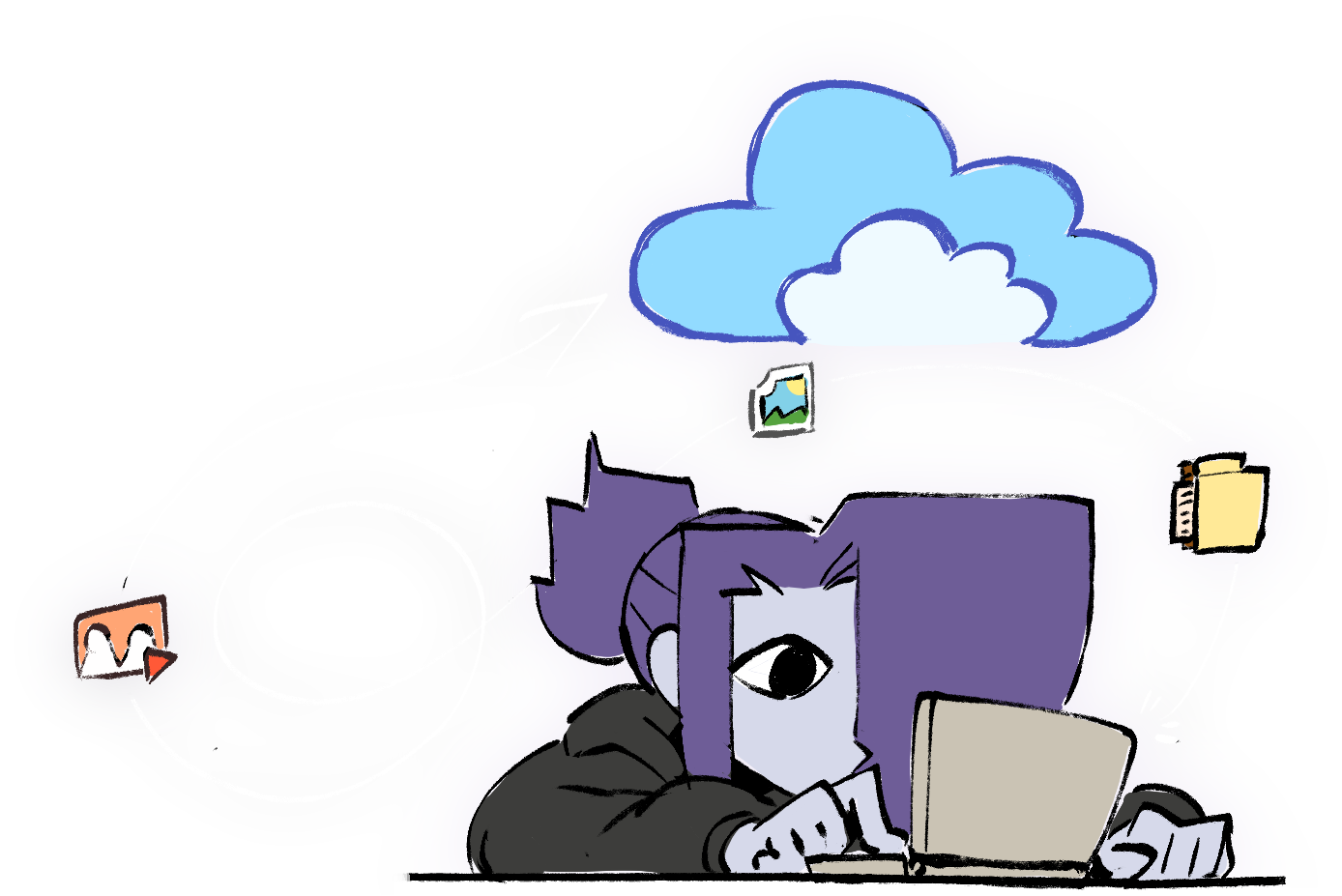
My first and foremost pick is Proton Drive, which I pay for ($4 USD/month per 200GB). Their free plan is pretty measly — only 5GB of storage — but their values align with mine in terms of privacy and the price point is very cheap for what I need it for. Worth mentioning however is that their desktop application is Windows and Mac only, while the Android app is woefully featureless (I couldn’t even download any files from another device onto it?). The web application however works just as you’d expect it to, and that’s good enough for me. It also doesn’t have any AI features that may try to spy on whatever it is you’ve uploaded, which I can’t really say the same for the more popular alternatives.
Anything below this point is conjecture. I don’t actively use these services.
MEGA may be your best free alternative, offering proper secure file encryption and 20GB of free storage. I would advise to not use it for public file sharing, as they are fairly prone to removing anything from their servers if it gets reported regardless if it is a ToS violation or not. But for private storage, it’s probably completely fine! It too has no AI features.
But please, DO NOT USE Google Drive, Dropbox, iCloud, OneDrive or any other “household name”
if you can help it. They do not have your security in mind and are most likely using your data for things you
most likely haven’t properly consented to.
I would put in a good word for them because of the ease of use, but they always come with the atrociously
intrusive terms that they bring with them. If you can, avoid them. I will not be recommending any of them in this post.
If you are using any of these, I’d recommend switching to something privacy focused.
There are many more cloud services available out there, and listing all of them is kind of outside my scope. Please do your research when picking one out, whether it be security, pricing, features or what have you.
Okay, but how should I do it?
The simplest way to back up your data for a physical drive, in my opinion, is zipping up your art folder with something like 7-Zip and putting it into your drive. Pretty simple! You don’t necessarily need to put your folder in a .zip (or similar) file, but it does save a bit on storage space. If you have some know-how, you could set up an executable script to do the boring part for you, but that’s for another post.
The best way to back up your data for a cloud service is to see if they offer a desktop application that can run in the background and read your folder in real time, and upload it to the service accordingly. Both the services I’ve recommended above do that, and there certainly are many services that offer similar functionality. Of course that can be a bit resource intensive, so if you don’t have the strongest computer, you could just manually upload your art folder every so often.
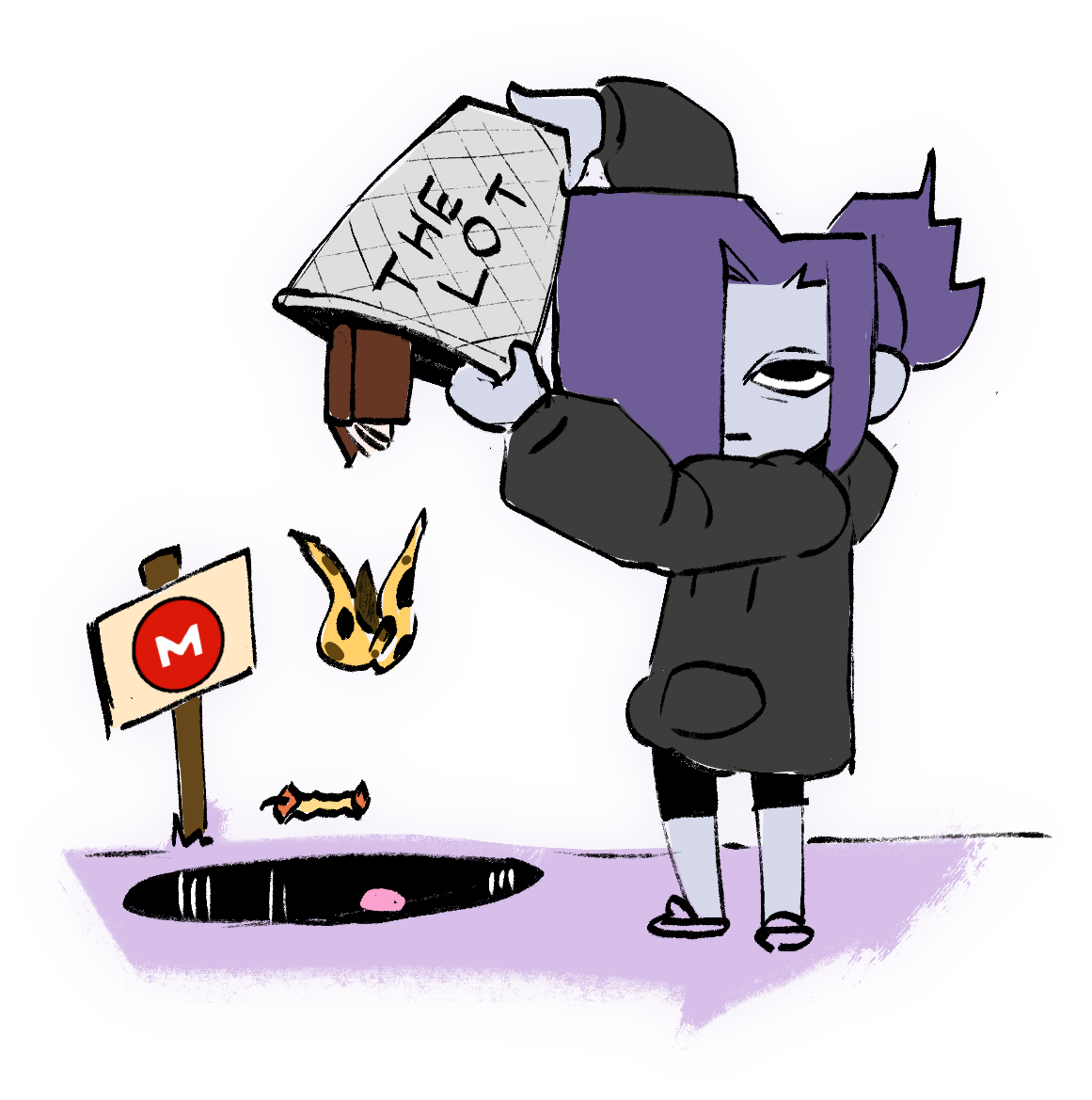
The key to all of this is that you need to actually set it in motion. It’s worth to set a calendar reminder or something similar to make regular backups. Since drive failures are uncertain events I can’t exactly tell you how often you should be doing it (ideally you’d be updating it with every change you make), but it’s definitely worth doing regularly.
What if the backups also fail?
As I mentioned before, data storage has a lifespan. A fairly long one depending on what you get, but a limited one nonetheless. Getting more than one drive is risk management — if you have more copies, the less of a risk there is you lose your all data, because the chances of all separate drives dying at the same is very unlikely (especially if you’ve bought them a few years apart). Though sometimes the things just do not work to begin with.
Computers are kind of like cars in that while they are designed to run for as long as they can, eventually its constituent parts will break down and render the system inoperable. And just like cars, it ends up falling on the owner to do something about it. As much as we’d want them to be, neither cars nor computers are designed to “just work” forever. All of which to say, shit’s gonna break. This is why we can’t just stick to physical storage nowadays; cloud solutions are just as important.
But that’s a bit of an oxymoron. Cloud-based storage is still physical storage, it’s just somewhere so far out of reach that we can’t actually see it. The difference here is that the data is stored in a server rack that was built for storage, with all the advanced safeguards to deal with outages and power surges put in place by people who are way smarter than you or me combined. (unless, y’know, you are that person. thanks)
However, putting your faith in some company to do it for you of course runs the risk of data breaches, of which there has been no shortage of news reports on. No solution is ever perfect; the price you pay for convenience is the fact that everything is connected to the Internet, which automatically makes it more vulnerable.
There’s better picks than others in terms of cloud storage;
the ones I’ve recommended have made it a selling point to invest more in privacy. But ultimately for the layman,
that is exactly what it is; a selling point. It’s up to you whether you trust it or not.
I’ll tell you what I tell anybody;
don’t put anything on the Internet that you aren’t comfortable risking going public.
In the end, only you are comfortable with what risks you want to run while backing up your data, whether that is hardware loss or privacy loss. All I’m saying is that regardless of how you do it, you should be doing it. Whatever you end up doing, it’s probably the better alternative over losing all your work.
Thank you to NotNite for informing me about the 3-2-1 strategy and for proofreading. (https://www.backblaze.com/blog/the-3-2-1-backup-strategy/) Thank you to low res, Bolty and huma for proofreading.
All illustrations were done by me.
If you have any thoughts or recommendations, feel free to shoot an e-mail.
I may make addendums and corrections in the future.
